Home automation isn’t just about gadgets, it’s about designing a system that actually fits the way a homeowner lives. A poorly planned setup leads to orphaned devices, connectivity headaches, and remotes scattered across every room. The difference between a smart home that works and one that frustrates comes down to upfront planning, ecosystem compatibility, and realistic installation expectations. This guide walks through the design decisions, device selection, and installation techniques that turn a collection of Wi-Fi devices into a cohesive, functional automation system.
Table of Contents
ToggleKey Takeaways
- Home automation design requires upfront planning around ecosystem compatibility and wireless protocols to avoid orphaned devices and connectivity issues.
- Smart home ecosystems like Amazon Alexa, Google Home, and Apple HomeKit each offer different tradeoffs between device compatibility, privacy, and ease of setup that shape your entire system.
- Prioritize hub-and-spoke architecture using Zigbee and Z-Wave devices over standalone Wi-Fi gadgets to reduce network congestion and improve scalability beyond 20-30 devices.
- DIY installation suits smart bulbs, plugs, and thermostats with C-wires, but professional installers should handle structural modifications, motorized shades, and main electrical panel work.
- Connectivity dropouts stem from Wi-Fi congestion, distance from hubs, or interference—use mesh networks, place repeaters strategically, and separate 2.4 GHz for sensors from 5 GHz for media devices.
- Local control processing cuts automation response times by 60-80% compared to cloud-dependent systems, making platforms like Home Assistant or Hubitat more responsive for time-sensitive routines.
What Is Home Automation and Why Design Matters
Home automation refers to the networked control of lighting, climate, security, entertainment, and appliances through a central hub, smartphone app, or voice assistant. The technology uses wireless protocols, Wi-Fi, Zigbee, Z-Wave, Thread, or Bluetooth, to link devices into a unified system.
Design matters because these protocols don’t always play nice together. A homeowner who buys a Zigbee thermostat, a Wi-Fi camera, and a Z-Wave door lock ends up managing three separate apps and zero automation routines. Strategic design means choosing compatible devices, mapping wireless coverage, and planning power sources before drilling a single hole.
It also means understanding the difference between cloud-dependent devices and local-processing hubs. Cloud systems rely on internet connectivity and vendor servers: if the company folds or kills support, the hardware becomes a paperweight. Local hubs like Home Assistant or Hubitat process automation rules on-device, which improves privacy and reliability but requires more technical setup. The design phase is where these tradeoffs get evaluated.
Planning Your Home Automation System
Assessing Your Needs and Budget
Start by listing the problems automation should solve. Is the goal energy savings, security monitoring, or just turning off lights from bed? Prioritize one or two rooms, typically the living room and primary bedroom, before attempting whole-home coverage.
Budget tiers break down roughly like this:
- Entry level ($500–$1,500): Smart bulbs, a voice assistant, smart plugs, and a video doorbell. Works for renters or anyone testing the waters.
- Mid-range ($1,500–$5,000): Hub-based system with smart locks, thermostat, dimmer switches, motion sensors, and 3–5 cameras. Requires neutral wires in switch boxes (more on that in installation).
- Advanced ($5,000+): Whole-home integration with motorized shades, multi-zone audio, lighting control panels, hardwired sensors, and professional-grade networking (UniFi or similar).
Consider ongoing costs: cloud storage for cameras typically runs $3–$10 per camera per month, and some hubs charge subscription fees for advanced automation features. Plan network infrastructure too, budget routers struggle once device counts exceed 20–30. A mesh Wi-Fi system or separate access point dedicated to IoT devices prevents bottlenecks.
Make a floor plan sketch marking device locations, existing electrical boxes, and potential dead zones for wireless signals. Basements, exterior walls, and metal-clad structures block RF signals, so hubs and repeaters need strategic placement.
Choosing the Right Ecosystem and Devices
The ecosystem decision, Amazon Alexa, Google Home, Apple HomeKit, Samsung SmartThings, or open-source platforms like Home Assistant, shapes every subsequent choice.
Alexa and Google Home offer the widest device compatibility and easiest setup, but they’re cloud-heavy and prioritize vendor lock-in. HomeKit demands certified devices (which cost more) but offers better privacy and local automation via HomePod or Apple TV as a hub. SmartThings supports Zigbee and Z-Wave natively, making it a good middle ground for protocol flexibility.
Home Assistant is the power-user route. It runs on a Raspberry Pi or dedicated hardware, supports nearly every protocol and brand, and keeps processing local. Setup requires comfort with YAML config files and network troubleshooting, but it’s the most future-proof option if a vendor discontinues a product line.
When selecting devices, prioritize hub-and-spoke architecture over standalone Wi-Fi gadgets. Each Wi-Fi device hogs router bandwidth and IP addresses: Zigbee and Z-Wave devices communicate through a central hub, reducing network congestion. For example, fifteen Zigbee bulbs create one hub connection, while fifteen Wi-Fi bulbs create fifteen.
Look for devices with local API access or LAN control, not just cloud-only operation. Check integration lists before buying, some smart automation projects require specific compatibility.
Safety note: Any device controlling heating, locks, or large appliances should carry UL or ETL certification. Avoid no-name imports for anything hardwired or handling over 5 amps.
DIY vs. Professional Installation: Which Path to Take?
DIY-friendly installations include:
- Smart plugs, bulbs, and battery-powered sensors: Zero electrical work. Plug in, pair via app, done.
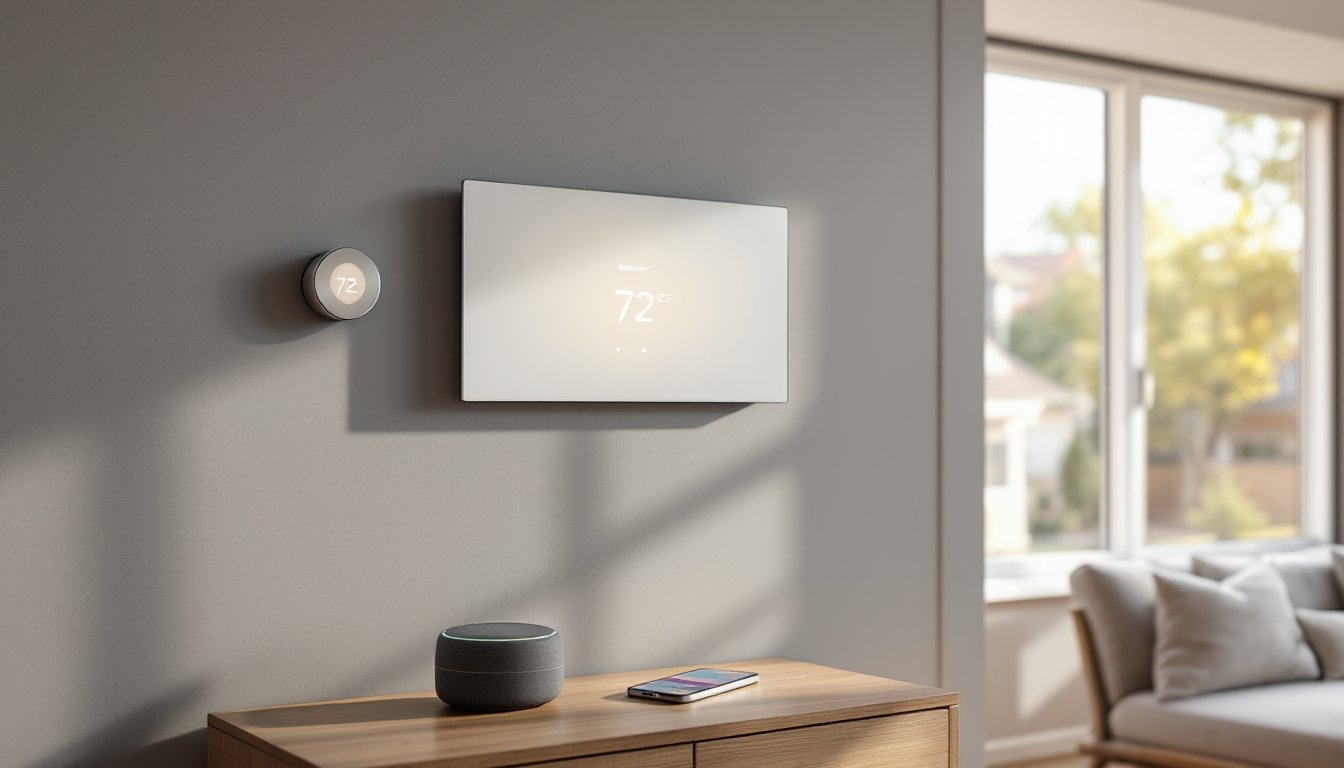
- Thermostat replacement: If there’s a C-wire (common wire, usually blue) at the existing thermostat, installation takes 20 minutes with a screwdriver and label tape. Without a C-wire, add a power extender kit (included with Nest and Ecobee) or run new 18/5 thermostat wire from the HVAC unit.
- Smart switches: Requires cutting power at the breaker, identifying line/load wires, and confirming a neutral wire is present. Most smart switches need a neutral: if the box only has a hot and traveler (common in older homes), either run new 14/3 Romex or use Lutron Caseta, which works without a neutral.
- Video doorbells: Hardwired versions tie into existing doorbell transformers (usually 16V AC). If the transformer is under 16V or the homeowner doesn’t want to drill through brick, battery-powered models avoid wiring but need recharging every 2–6 months.
Call a pro for:
- Load-bearing or structural modifications (running conduit through studs, mounting ceiling speakers in joist bays).
- Low-voltage wiring in walls if local code requires a licensed electrician (varies by jurisdiction: check with the local building department).
- Whole-home audio, motorized shades, or integrated lighting panels. These systems involve control wiring, programming, and calibration that exceed typical DIY scope.
- Anything involving the main electrical panel or 240V circuits.
Permits typically aren’t required for device-level swaps (thermostat, switch, outlet) but may be needed for new circuit runs or panel modifications. When in doubt, a $50 permit beats a failed home inspection or insurance claim denial.
Step-by-Step Installation Guide for Common Systems
Smart Lighting (Hardwired Switch Replacement)
- Kill power at the breaker. Confirm with a non-contact voltage tester.
- Remove the existing switch and photograph wire connections.
- Identify wires: black = line (hot from panel), black or red = load (to fixture), white = neutral, bare copper = ground.
- Connect the smart switch per manufacturer diagram (typically line to black, load to second black, neutral bundle to white, ground to green screw).
- Secure the switch in the box, restore power, and pair via app. Most require the switch to be toggled on-off-on three times rapidly.
Smart Thermostat
- Turn off HVAC power at the furnace or air handler switch.
- Remove the old thermostat and label each wire (R, C, W, Y, G are standard).
- If no C-wire is present, install the power extender at the HVAC unit per included instructions (connects to C and R terminals on the control board).
- Mount the new backplate, connect labeled wires, snap on the display.
- Restore power and follow on-screen setup. The system will test heating and cooling cycles.
Video Doorbell (Hardwired)
- Shut off power to the existing doorbell at the breaker.
- Remove the old button and note wire connections.
- Check transformer voltage with a multimeter: it should read 16–24V AC. Upgrade the transformer if it’s under spec.
- Mount the doorbell bracket (use the included anchors for brick or stucco: a masonry bit makes cleaner holes than a standard twist bit).
- Connect wires to terminals, attach the doorbell, restore power.
- Pair via app and position the camera angle before final tightening. Most doorbells have a wedge mount for angled doorways.
Security Cameras (Wireless)
- Mount cameras 7–9 feet high to avoid tampering but below the roofline to prevent false motion alerts from weather.
- Use weatherproof boxes for junction points if running low-voltage cable outdoors.
- Pair cameras one at a time to avoid app confusion.
- Set motion zones to exclude streets and sidewalks, cars and passersby will trigger constant alerts otherwise.
PPE for all installations: Safety glasses (especially for overhead work), insulated screwdrivers for electrical, work gloves for outdoor mounting.
For region-specific setups, like accommodating extreme heat in desert climates, some installers in areas offering professional smart home services recommend outdoor-rated enclosures even for devices marketed as weatherproof.
Troubleshooting and Optimizing Your Setup
Connectivity dropouts are the most common complaint. Check these first:
- Wi-Fi congestion: Use a Wi-Fi analyzer app to find the least crowded channel. Switch the router to 5 GHz for media devices and 2.4 GHz for sensors and bulbs (2.4 GHz has better range: 5 GHz has more bandwidth).
- Distance from hub: Zigbee and Z-Wave form mesh networks, each powered device acts as a repeater. If sensors drop offline, add a plug-in repeater midway between the hub and problem device.
- Interference: Avoid placing hubs near microwave ovens, cordless phones, or USB 3.0 drives, all of which can interfere with 2.4 GHz signals.
Automation not triggering usually means incorrect logic in the routine. Most platforms default to AND conditions (motion detected AND after sunset) when users expect OR. Review trigger conditions in the app’s automation editor.
High latency (commands taking 3+ seconds) points to cloud round-trips. Switch to local control where possible or upgrade to a hub that processes rules on-device. Research from independent smart home guides confirms local processing cuts response times by 60–80%.
Battery drain in sensors: Motion sensors rated for 2-year battery life often die in 6 months if placed in high-traffic areas. Reduce sensitivity settings or switch to hardwired options.
Firmware updates fix bugs but occasionally break integrations. Enable auto-updates for security devices (cameras, locks) but manually approve updates for hubs and controllers until user forums confirm stability.
Network segmentation improves security and performance. Create a separate SSID for IoT devices and isolate it from the main network using VLAN settings in the router (prevents a compromised bulb from accessing personal computers). This is standard practice in advanced automation implementations.
Optimization tips:
- Group devices by room in the app for easier voice control.
- Use occupancy sensors (which detect sustained presence) instead of motion sensors in rooms where people sit still, like home offices.
- Set lighting scenes to 2700K–3000K color temperature for evening routines: higher temps (4000K+) interfere with sleep.
- Test automation routines for a week before adding more complexity. A system with five reliable rules beats one with twenty flaky ones.
For anyone wondering whether automation costs justify the investment, the answer depends on energy savings and whether the homeowner values convenience over manual control. Smart thermostats typically recoup costs in 18–24 months via reduced HVAC runtime, but smart bulbs rarely pay for themselves on electricity savings alone.
Security hardening:
- Change default passwords on every device.
- Disable remote access unless actively needed.
- Check for devices phoning home to unexpected servers using router traffic logs.
Some manufacturers, according to reviews on leading tech sites, have questionable data privacy policies, read the fine print before connecting anything with a camera or microphone.
If the system grows beyond 40–50 devices, consider dedicated security-focused automation platforms that offer enterprise-grade monitoring features without the DIY troubleshooting overhead.